bgunderlay bgunderlay bgunderlay

Changing IP to another country

To change your IP address to another country, you can use a VPN (Virtual Private Network). A VPN allows you to connect to a remote server in a different location, which then assigns you an IP address from that server. Here are the general steps to change your IP address to another country using a VPN:

  1. Choose a reputable VPN service provider, such as ExpressVPN, NordVPN, or others with servers in the country you want to connect to
  2. Sign up for the VPN service and install the VPN app on your device
  3. Open the VPN app and connect to a server in the country you want to get an IP address from
  4. Once connected, your IP address will be changed to the IP address of the server in the selected country

Using a VPN is a legal and commonly used method to change your IP address and access geo-restricted content or improve online privacy and security.

How to choose the best VPN for changing your IP address

To choose the best VPN for changing your IP address, consider the following steps and factors:

  1. Server Coverage: Look for a VPN that offers servers in the country you want to connect to. The more server locations available, the more options you have for changing your IP address
  2. Speed and Reliability: Choose a VPN with fast and reliable connections to ensure a smooth experience when using the new IP address
  3. Security and Privacy Features: Prioritize VPNs that offer strong encryption, a no-logs policy, and other security features to protect your online privacy
  4. Device Compatibility: Ensure that the VPN is compatible with your devices and offers user-friendly apps for easy IP address switching
  5. Customer Support: Consider VPNs that offer responsive customer support to assist you with any issues related to changing your IP address

NordVPN and Surfshark are recommended as top choices for changing your IP address due to their server coverage, speed, and security features.
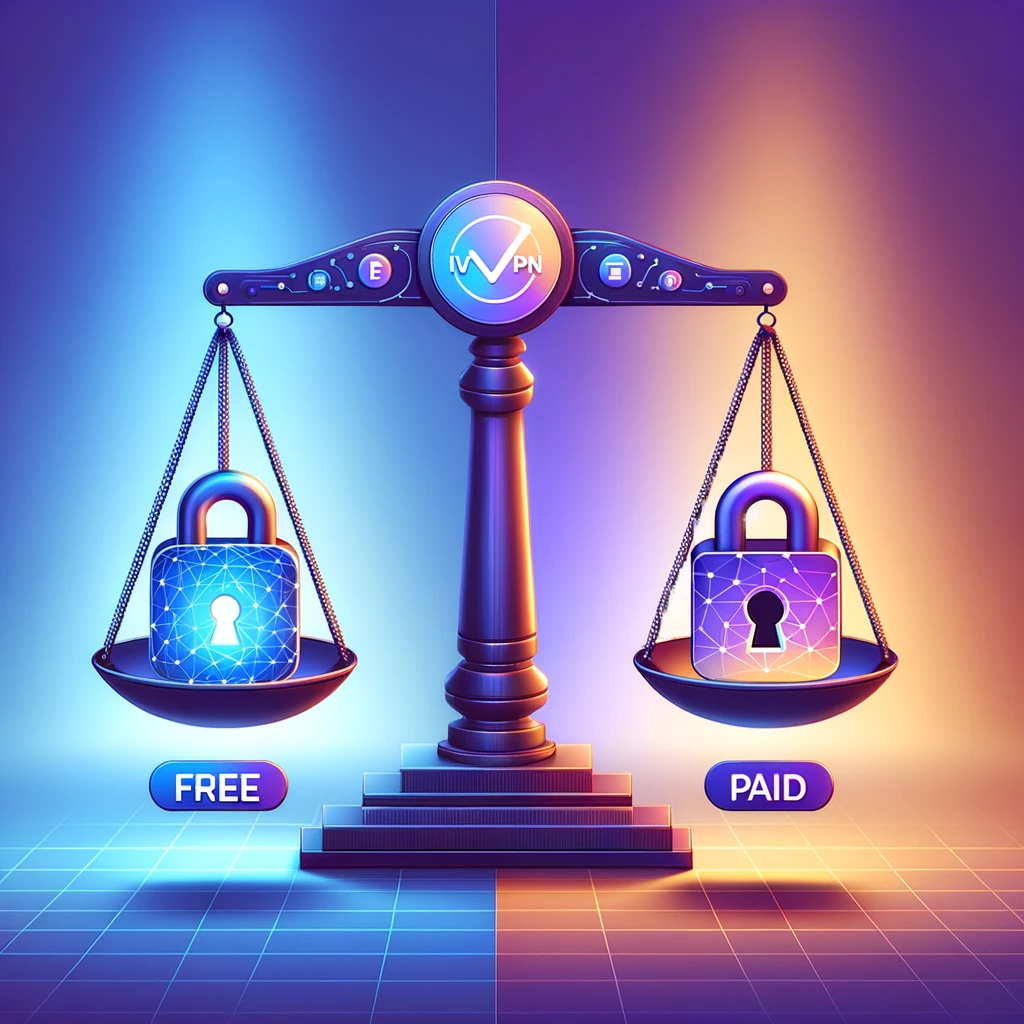
What are the differences between free and paid VPNs for changing your IP address

The differences between free and paid VPNs for changing your IP address are significant. Here are the key distinctions:

  1. Privacy and Security: Paid VPNs typically offer higher levels of privacy protection and security, including strong encryption and a no-logs policy, while free VPNs may have limitations in these areas
  2. Speed and Data Capacity: Paid VPNs generally provide faster communication speeds and unlimited data capacity, whereas free VPNs often have slower speeds and data limits
  3. Server Availability: Paid VPNs offer a wider range of server locations in numerous countries, while free VPNs usually have servers in fewer countries and limited server availability
  4. Ads and Data Collection: Free VPNs often rely on ads or data collection to generate revenue, which can compromise user experience and privacy, while paid VPNs do not rely on such practices
  5. Reliability and Support: Paid VPNs typically offer more reliable performance and better customer support compared to free VPNs

In summary, while free VPNs may offer basic protection, investing in a paid VPN provides enhanced features, security, and reliable performance for changing your IP address.

How to test if your IP address has been successfully changed using a VPN

To test if your IP address has been successfully changed using a VPN, you can follow these methods:

  1. Check Your IP Address: After connecting to a VPN server, you can visit websites like “What Is My IP” to note down your IP address and location. Upon connecting to the VPN server, your IP address should change to the one provided by the VPN
  2. WebRTC Leak Test: You can perform a WebRTC leak test by visiting websites like BrowserLeaks with and without the VPN connected. This test helps ensure that your IP address remains private when using the VPN
  3. IP Leak Test: After connecting to the VPN server, you can use IP leak test websites to verify that your IP address is different from your original IP. This test helps detect any potential IP leaks while using the VPN

By performing these tests, you can verify that your IP address has been successfully changed using a VPN.

How to troubleshoot common issues when changing your IP address with a VPN

IssueTroubleshooting Steps
VPN Not Connecting1. Check your internet connection.2. Change the VPN server or location.3. Use a different protocol.4. Consider trying a different VPN provider if the issue persists.
IP Address Not Hiding1. Connect to a different server.2. Use a different protocol.3. Consider switching to a more secure VPN provider if the problem continues.
Checking IP Address Change1. Visit a “What Is My IP” tool to note down your IP address and location before and after connecting to the VPN.2. Perform a WebRTC leak test to ensure your IP address remains private when using the VPN.3. Use an IP leak test to verify that your IP address is different from your original IP.

By following these steps, you can address common issues encountered when using a VPN to change your IP address.

How to troubleshoot slow internet speeds when using a VPN to change your IP address

MethodDescription
Change VPN Server LocationSwitch to a different VPN server location closer to your physical location to reduce latency and improve speed.
Switch VPN ProtocolTry switching between different VPN protocols (e.g., TCP and UDP) to see which one provides the fastest speeds.
Use a Wired ConnectionIf you’re using a Wi-Fi connection, switch to a wired ethernet connection to eliminate potential wireless interference and improve speed.
Close Unnecessary AppsShut down any background applications that may be consuming bandwidth and affecting your internet speed.
Restart Devices and RouterReboot your computer, mobile device, and router to refresh the connections and potentially improve speed.
Check Internet Speed Without VPNTest your internet speed without the VPN to ensure that the issue is not related to your base internet connection.
Enable Split TunnelingIf your VPN provider offers split tunneling, consider enabling this feature to route only the necessary traffic through the VPN, potentially improving speed.

Following these steps can help address issues of slow internet speed when using a VPN for IP address change.

How to optimize your VPN settings for faster internet speeds

To optimize your VPN settings for faster internet speeds, you can consider the following effective options:

  1. Choose a Fast VPN Server: Opt for a geographically closer server with a lower user load to increase connection speed and stability
  2. Switch VPN Server Location: Connect to a server closest to your physical location to reduce data travel distance and potentially improve speed
  3. Change VPN Protocol: Try different VPN protocols to see which one provides the fastest speeds. Different protocols have varying advantages and disadvantages in terms of speed and security
  4. Enable Split Tunneling: If available, enable split tunneling to send only the necessary traffic through your VPN connection, potentially boosting VPN speeds
  5. Use a Wired Connection: Switch from a wireless to a wired ethernet connection to potentially improve speed and reduce latency
  6. Clear Device and Browser Cache: Regularly clear unnecessary files and data from your device and browser to optimize performance and increase internet speed
  7. Restart Your Router: A simple restart of your router or modem can resolve underlying connectivity issues and potentially improve speed

By implementing these options, you can optimize your VPN settings for faster internet speeds and enjoy a smoother online experience, whether using a VPN or not.

Alexander Timokhin

COO

    Ready to get started?

    Articles
    A Beginner’s Guide to Subnetting IPv4 and IPv6 Addresses (2026 Update)
    A Beginner’s Guide to Subnetting IPv4 and IPv6 Addresses (2026 Update)

    A Beginner’s Guide to Subnetting IPv4 and IPv6 Addresses Subnetting is a critical

    More
    IPv4 Leasing Revolution: Why Smart Businesses Are Ditching Ownership in 2025
    IPv4 Leasing Revolution: Why Smart Businesses Are Ditching Ownership in 2025

    Why IPv4 Leasing Is Becoming the Smart Choice for Businesses in 2025 1. Introduction
    More
    Network Isolation Revolution: IPv4 Marketplace Insights for Enterprise Security
    Network Isolation Revolution: IPv4 Marketplace Insights for Enterprise Security

      As CEO of InterLIR, I’ve witnessed firsthand how network isolation strategies

    More
    What is ASN?
    What is ASN?

    What is an ASN? ASN stands for Autonomous System Number. It is a unique identifier

    More
    How Anycast DNS Actually Works (And Why Your Network Needs It)
    How Anycast DNS Actually Works (And Why Your Network Needs It)

    Anycast DNS: A Leader’s Guide to Protecting Your Digital Infrastructure Executive

    More
    Why RPKI Matters: Securing Your Company’s Internet Traffic
    Why RPKI Matters: Securing Your Company’s Internet Traffic

    RPKI Certification: A Leader’s Guide to Internet Routing Security Executive

    More
    Why RIPE Address Policy Matters for Your Company’s Digital Future
    Why RIPE Address Policy Matters for Your Company’s Digital Future

    Executive Summary: What You Need to Know 🎯 Strategic Importance – Internet

    More
    AWS Outages: The CEO’s Guide to Preventing Downtime & Protecting Revenue
    AWS Outages: The CEO’s Guide to Preventing Downtime & Protecting Revenue

      When AWS DynamoDB failed in October 2025, thousands of businesses discovered that

    More
    What I Wish CEOs Knew About Managing IP Reputation Risk
    What I Wish CEOs Knew About Managing IP Reputation Risk

    Executive Summary: What You Need to Know 🎯 IP reputation directly impacts your

    More
    How to Create a Subnet and Configure Routing
    How to Create a Subnet and Configure Routing

    Mastering Subnetting and Routing for Modern Networks Why Subnetting Matters in Today’s

    More